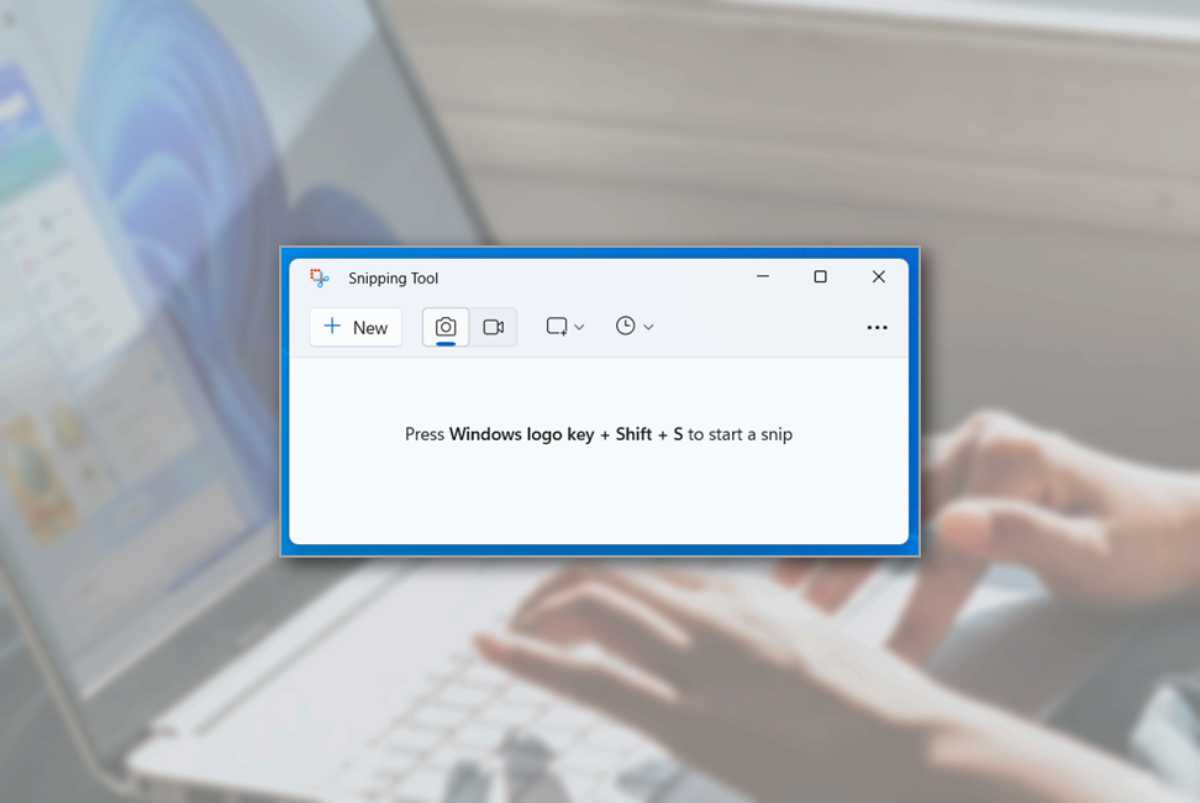
If you’re looking for the easiest way to take screenshots or record your screen on a Windows PC, the Snipping Tool has you covered.
This built-in utility has been part of Windows since Windows 7, and it remains one of the most reliable and user-friendly tools for capturing everything on your screen.
In this post, we’ll walk you through the steps of how best to maximize Snipping Tool for all your screenshot and screen recording needs.
Taking Screenshots on Windows PC with Snipping Tool
- Open the Snipping Tool
- Press Windows + Shift + S to launch the snipping overlay.
- Or search for “Snipping Tool” in the Start menu and open the app.
- Choose Your Snip Mode
- Rectangular Snip: Drag to capture a specific area.
- Freeform Snip: Draw a custom shape around what you want to capture.
- Window Snip: Select an open window to capture.
- Fullscreen Snip: Capture the entire screen.
- Edit and Save
- After capturing, the image opens in the Snipping Tool editor.
- Use tools like pen, a highlighter, and eraser to annotate.
- Click “Save As” to store the image in PNG, JPEG, or GIF format.
- You can also set screenshots to be automatically saved in the Pictures/Screenshots folder.
Recording Your Screen with Snipping Tool
- Launch the Snipping Tool
- Open the app from the Start menu or taskbar.
- Switch to Recording Mode
- Click the video camera icon in the toolbar.
- Press Windows + Shift + R for quick access.
- Start a New Recording
- Click “New” and select the area of the screen you want to record.
- Optionally enable microphone audio if you want to narrate.
- Control the Recording
- Use the floating toolbar to start, pause, or stop the recording.
- Once stopped, preview the video and click “Save As” to store it.
- You can also set screen recordings to be automatically saved in the Video/Screen Recordings folder.
Tips and Shortcuts
- Use Windows + Shift + S for quick screenshots without opening the full app.
- Use Windows + Shift + R to jump straight into screen recording.
- Screenshots are automatically copied to your clipboard; just paste them into documents or chats.
- Screenshots are saved in the Pictures/Screenshots folder.
- Screen recordings are saved in the Video/Screen Recordings folder.
You can also set the “Print Screen” key to open the Snipping Tool for quicker access. To do this, follow these steps:
- Windows 11: Go to Settings> Accessibility> Keyboard and toggle on “Use the Print screen key to open screen capture”.
- Windows 10: Go to Settings> Ease of Access> Keyboard and toggle on “Use the PrtScn button to open screen snipping”.