
I have been looking for a way to do screen capture on my Android phone without having to resort to rooting. Screen capture is a fairly easy trick to implement on a smartphone and comes natively on the iPhone. However, Google has not included this feature on Android phones possibly for security reasons.
There are third party screen capture apps available on the Android Market but they all require rooting your Android phone. For the uninitiated, rooting is similar to jailbreaking on the iPhone, which means you have to install a root version of the Android OS for you to take total control over your phone. But rooting a phone takes a lot of heart to do since you might do something that could make your phone unusable.
Android users that don’t want to root their phones have resorted to using the Android SDK to do screen capture but that method is a bit complicated. There is an easier way to do it.
Here is how to do it.
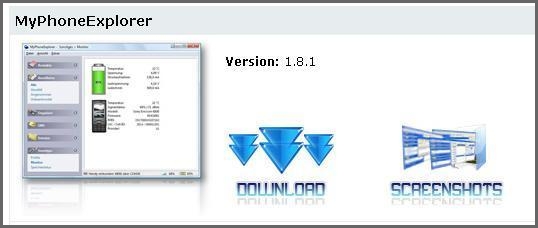
1. Download and install the MyPhoneExplorer application from here. This app is mainly used for Sony Ericsson handsets but it has support for Android phones.
2. Download and install your Android phone’s drivers from here. If your Android phone is an HTC, you’re in luck. Just download the HTC Sync app which you can find here. There is no need to download the drivers separately.
3. Put your Android phone on debugging mode by going to Settings > Applications > Development. Check the “USB Debugging” option.

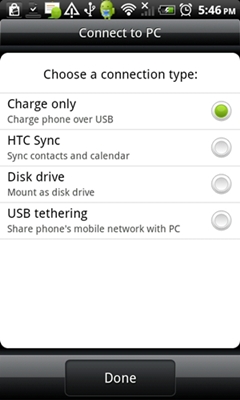
4. Upon connecting your Android phone to your computer, use the “Charge Only” mode.
5. Run the MyPhoneExplorer program on your computer.
6. Click on “Sync”. This will recognize your Android phone and sync data.
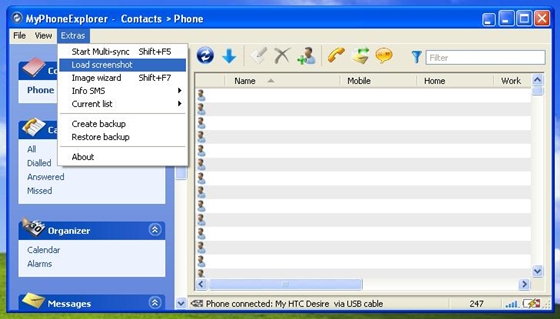
7. Go to “Extras” on the Menu bar. Click on the “Load Screen Shot” option.
8. This will bring you to a window display duplicating your phone’s screen.
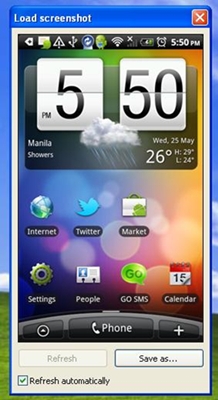
9. Click on “Save As” if you want to take a screen shot. It will prompt you to enter the file name before saving.
10. To take other screen shots, go to your phone then put it on the display you want to take screen shot of. Then click on “Refresh” on the MyPhoneExplorer display. It will duplicate whatever is on your phone screen at that moment. Or you may simply tick the “Refresh Automatically” button to automatically refresh the screen.
That’s it! Hope this helps.

80 Comments
thanks for providing it
I often capture screen while gaming
How to go on developer mode on android phone.
Is there one that needs no pc OR ROOT??????
A Million Thanks!
It’s a good thing that newer version of phones (Jelly Bean) don’t need this anymore. Screen capturing is so much easier now and no need to root your phone.
nice!
It’s easier for Samsung, just hold power button and home key at the same time. :)
wow! this is cool. :))
Thanks for the info…
If you use samsung phone click home button and then click the close screen button.
Thanks for discovering and posting this method. No rooting required for my aging HTC Glacier running Android 2.3.4 Gingerbread. Yes! Only worked though after I installed HTC Sync, My previously installed HTC USB Android driver was not robust enough to recognize the connection in charge only mode.
The interruption came just as Romney was asking for donations to help
Sandy victims. He carried on with his message after the chanting ended.
Carbo quickly contacted the New Haven police, and soon after detectives
were on the scene as a crowd of onlookers formed. Officer David Hartman
with the New Haven Police Department told ABCNews.com that the timing of
the discovery was particularly striking.
ok it works on my computer but i still want to be able to do it on my phone without my laptop…..i might as well root it.
there is an easier way to do it. Just press and hold the power & the volume button (this feature is only working in ICS), but if you have an HTC, there is even an easier way, hold the power button for like 1.5 sec and then press the home button (in the middle at the bottom). There it is, enjoy
Just tested the first option (holding power and the volume button) on my Verizon Motorola droid HD MAXX and it worked like a charm! It even made a new folder called screenshots and placed the shot in it. Good lookin out Anonymous!
ok so it looks like i can only do screenshots off my fone i im on the computer ???
it wont let me sync it……. why????? uhhh im so mad im almost there everything else is working fine grrrrr SOMEONE PLZZZZ HELP ME I BEGG YOU!!!
I installed the app, however, I am still getting the “Connection to phone could not be established: No device attached to USB” error message.
And you call this simple???
If you dont have load screen shot, hit control phone and it will capture screen
Press Power Button for 1sec and and tap the “Home”
Thanks for your article technobaboy, but ujjwal jain points out a solution that works for LG P930 and 2.3.5
when i press extras , i dont have the load screenshot option. help !
it seems that the “control phone” option doesn’t work if connected through wifi…BUT when I try using my usb cord, it says no device in usb. HELP!!!
Were you able to get this loaded and working? I am also getting the “Connection to phone could not be established: No device attached to USB” error.
no connection???
http://sl4tech.blogspot.com/2012/05/how-to-take-screen-capture-your-android.html
visit this ste……………..
very cool..thanks for the info! http://www.rutechy.com
indeed helpful tips to capture screen of your android smartphone.
Thanks for posting it is very helpful! :)
It would be nice if there was actually a “Load Screen Shot” option in this software. I downloaded this recently, and no option exists for this. Fucking bullshit. Get it straight, or get the fuck out!
It’s integrated into “Control phone” right now.
It’s a freeware, what do you expect?
i did as the instructions said but when i click on sync it keeps on saying that there is no device attached to usb. please help.
can anyone tell me how to down load the temple run on my phone
please tell me you are joking.
Market > Temple Run > Download
get a llife…
Power button and home button at the same time. Same as iphone.
only works on LG
the load screen shot doesnt appear how do i make it appear?
Load Screen Shot Doesnt Appear
try dis http://www.appsapk.com
andali lang kya mag download ng games jan sa cherryy pad .. dmi ku ng applications sa cherry pad ku.. kailangan lng ee my account ka sa gmail.. and then un pwdy na mag download what ever u want..
share ko lng !! :D
This worked -almost- perfectly. I still wish there was a way to take a screen cap without connecting to my PC, but aside from that, perfect. Thanks.
I installed the app, but the Load Screenshot option does not appear !
Any ideas ?
useless app
just press the Power+Home button and you have a screen shot in your folder
this is only available on certain samsung phones. for others, it’s not available.
lol that was what i was looking for… i remember holding my home button and it would just take a screenshot by itself, and i did it again but it wouldn’t work… i knew i had to press another button.. haha, thanks!
thanks for posting! i was able to install and screen capture on Evo – wish was a built in feature, but hey this will work for now.
you’re welcome :)
fuck your app. my phone htc desire hd and this fucking app didn’t work
This is the only thing that works on my Evo 4G! Thanks so much for the info. I wish I didn’t have to connect to my laptop, but this sure beats not being able to screen capture.
you’re welcome. yeah, this is the easiest alternative out there. unless you are brave enough to root your handset :)
Or you can just click the home and back button at the same time for the galaxy ace…
installs and syncs easily with my Samsung Galaxy S2. Screencapture works only for the first screen. I always get an error message when updating the screen
This worked great! And as the person below me said it’s Phone Keypad now as well. Thank you for this great tutorial!
thanks! btw it’s not load screenshot anymore, it’s phone keypad
Nice! :)
Way too easy; HTC EVO4G 2.3.3 @ Windows 7 Ultimate 32-bit
I dont know why anyone would say it was complicated. I downloaded the installed, was connected to my phone, had my screenshot and was syncing my contacts in less than 5 minutes
That is way too complex to ever be convenient.
totally agree…
Works fine wth my ViewPad 7, Thanks!
:)
you’re welcome!
Does not work on my Desire Z android 2.3.3 and Windows 7 64-bit.
When hitting the sync burron this error message appears:
Connection to phone could not be established: SocketError: 10061 – Connection is forcefully rejected.
Sorry, should read button, not burron.
There’s a much easier way to take screenshot on your unrooted phone. It’s an app called “No Root Screenshot It”:
https://market.android.com/details?id=com.edwardkim.android.screenshotitfullnoroot
I’m using a Mac – OS 10.6.7 running VMWare Fusion w/ WIndows 7 Ultimate 64 bit. Everything worked great except in the article is says to connect CHARGE ONLY and I kept getting and error when trying to sync – so I switched it to HTC SYNC and it worked great!
great! thanks for sharing
Samsung Galaxy ace has a built-in screen capture feature..By just pressing and holding the back button and then pressing the Home key you’ll have screen capture of your phone…
cool. i heard there’s also screen capture on the galaxy S 2?
Nope. I have a GS2 and it didn’t come with the phone.
Thanks!
My Galaxy S will do screen capture. I just can’t figure out how to do it when I want it to happen. LOL.
haha
Correct! I am so happy with my Galaxy Ace With its Froyo that’s why I am really thinking of not upgrading it to Gingerbread anymore.
that’s great. i really hope screen capture becomes standard on all android phones.
Yep the Gio also